

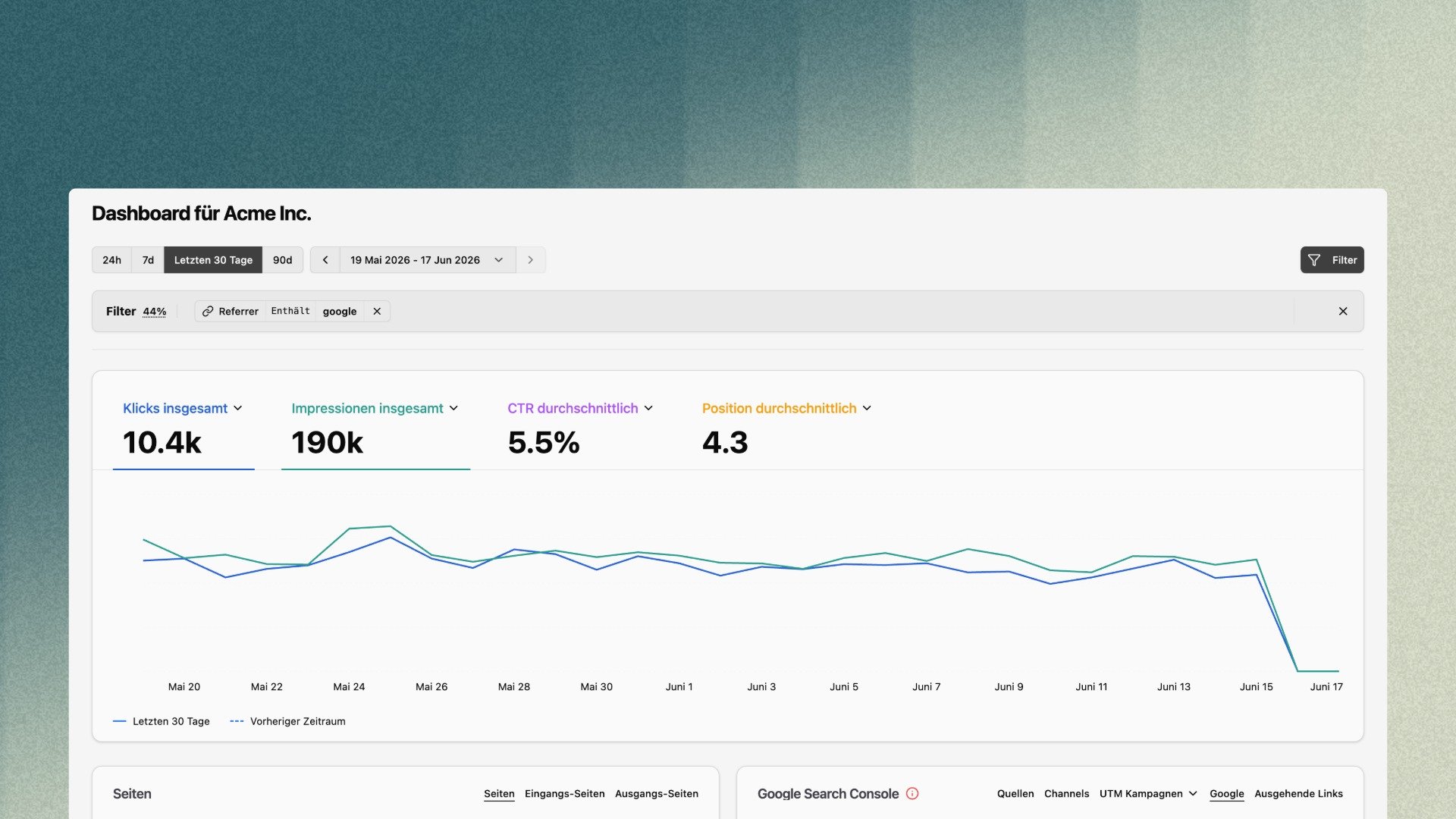
The Google Search Console integration brings your search data straight into bchic Analytics. See how your pages perform in Google Search – without switching between two tools. And because your bchic filters also apply to the search data, you can connect search performance and on-site behavior in a single view for the first time.
Setup
You connect it under Settings → Integrations:- Open Settings → Integrations and select Google Search Console.
- Connect your Google account via OAuth and confirm access.
- Choose the property you want to link.
What the integration gives you
Once connected, you get a dedicated GSC dashboard with four core metrics:
The metrics can be shown as a time series and toggled individually. A previous-period comparison shows how things have developed versus the prior timeframe.
Dimensions: queries, pages, countries & more
The GSC integration doesn’t just show the four metrics – it breaks your search performance down across several dimensions. Each row includes visitors, impressions, CTR, and position, and is sortable, searchable, and paginated. Use the expand button to open the detailed view with every dimension as a tab:Google tab in the sources widget
On the dashboard, the GSC data appears as a dedicated “Google” tab in the sources widget – next to Sources, Channels, UTM Campaigns, and Outbound Links. The compact view shows your top search terms with their metrics; use expand to jump into the full dimension view, and the refresh icon to pull the latest data. That way your search performance is always in context with the rest of your traffic sources.Filters also apply to your GSC data
The key difference from Search Console itself: your bchic filters also work on the Google data. Filters that map to a GSC dimension – above all page/path, but also country and device – narrow the search data accordingly. For example: filter on your home page, and the Google tab will only show the search terms that page was actually found through. This answers questions that are tedious in Search Console:- Which keywords is a specific landing page really found through?
- How does a single page perform in search – and does that match its on-site behavior (time on page, conversions)?
Only filters that have a counterpart in the GSC dimensions can be applied. Filters without an equivalent in the Search Console data (e.g. purely behavior-based segments) have no effect on the Google tab.
Permissions
Access is governed by two separate rights (see Roles & Permissions):- Use Google Search Console (capability) — allows viewing the GSC data. Enabled by default for all roles.
- Manage Google Search Console (admin permission) — allows setting up and managing the integration (connecting the Google account, selecting the property).