
Since Mintlify currently doesn’t offer a native plugin integration, we’ll set up tracking using a small custom script. It only takes a few minutes.
1

Get your Website ID

First, you need the Website ID for your documentation from your bchic dashboard.
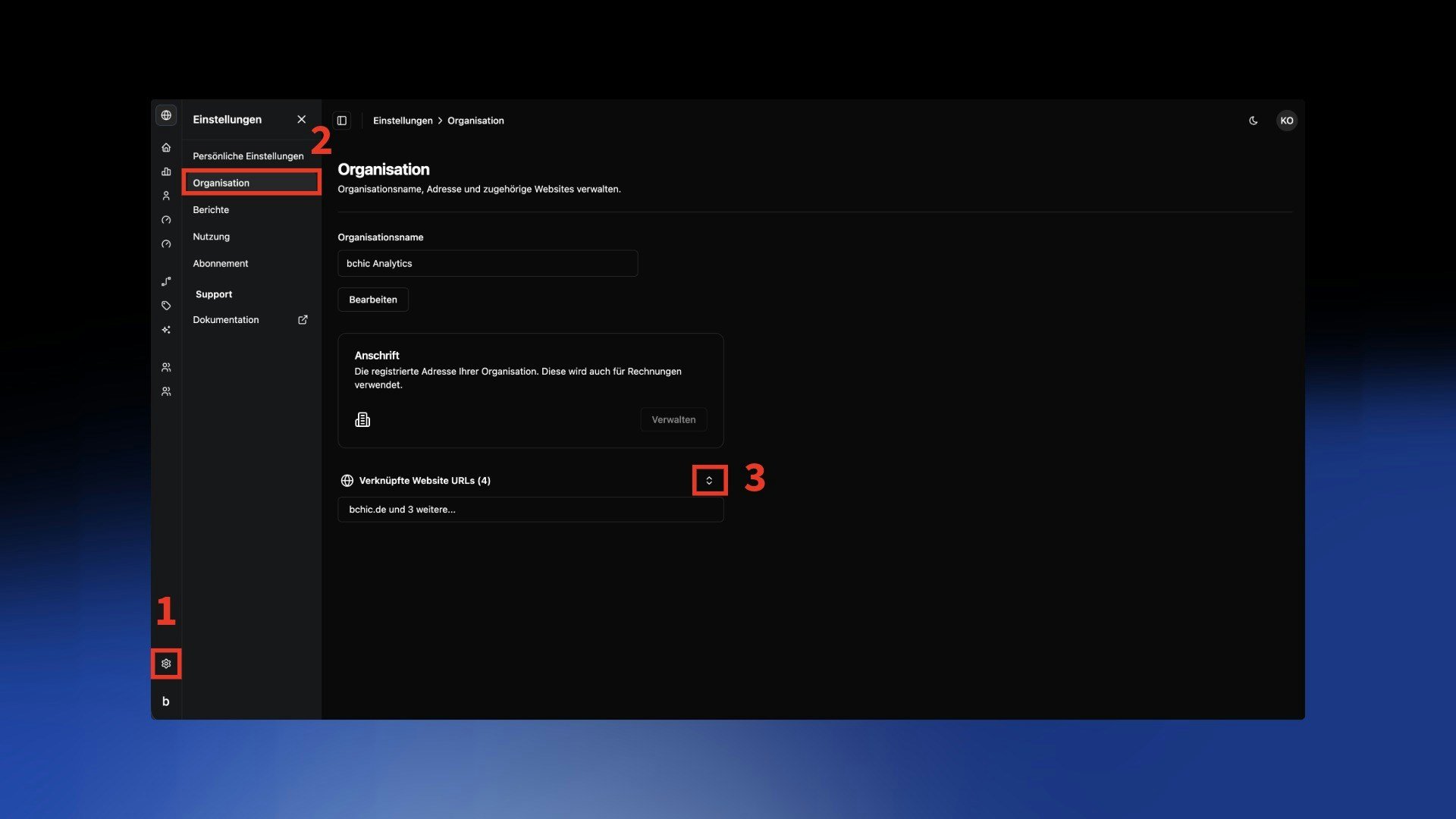
  1. Open Settings (gear icon bottom left).
  2. Navigate to Organization.
  3. Expand the “Linked Website URLs” section using the arrow icon.
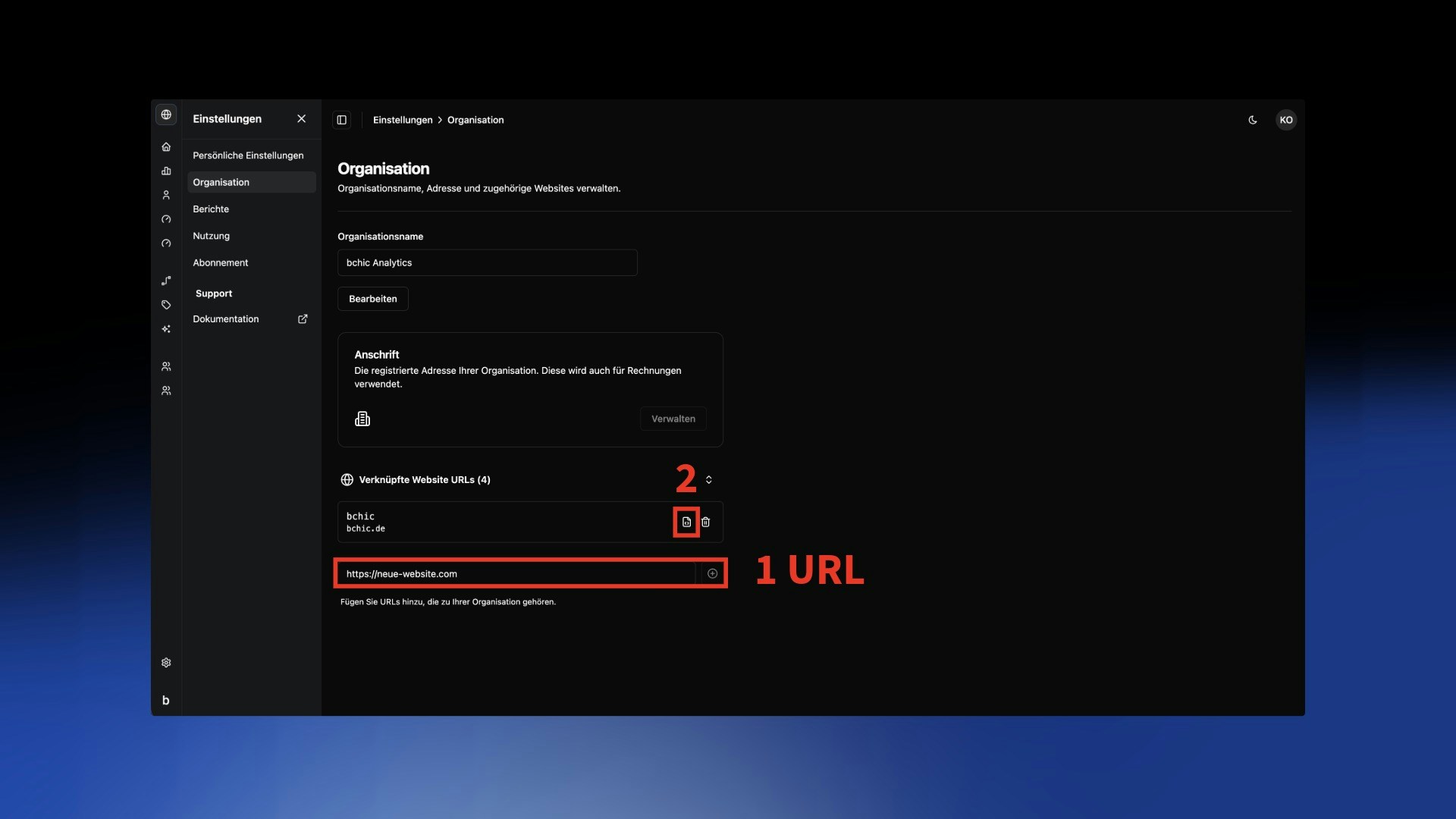
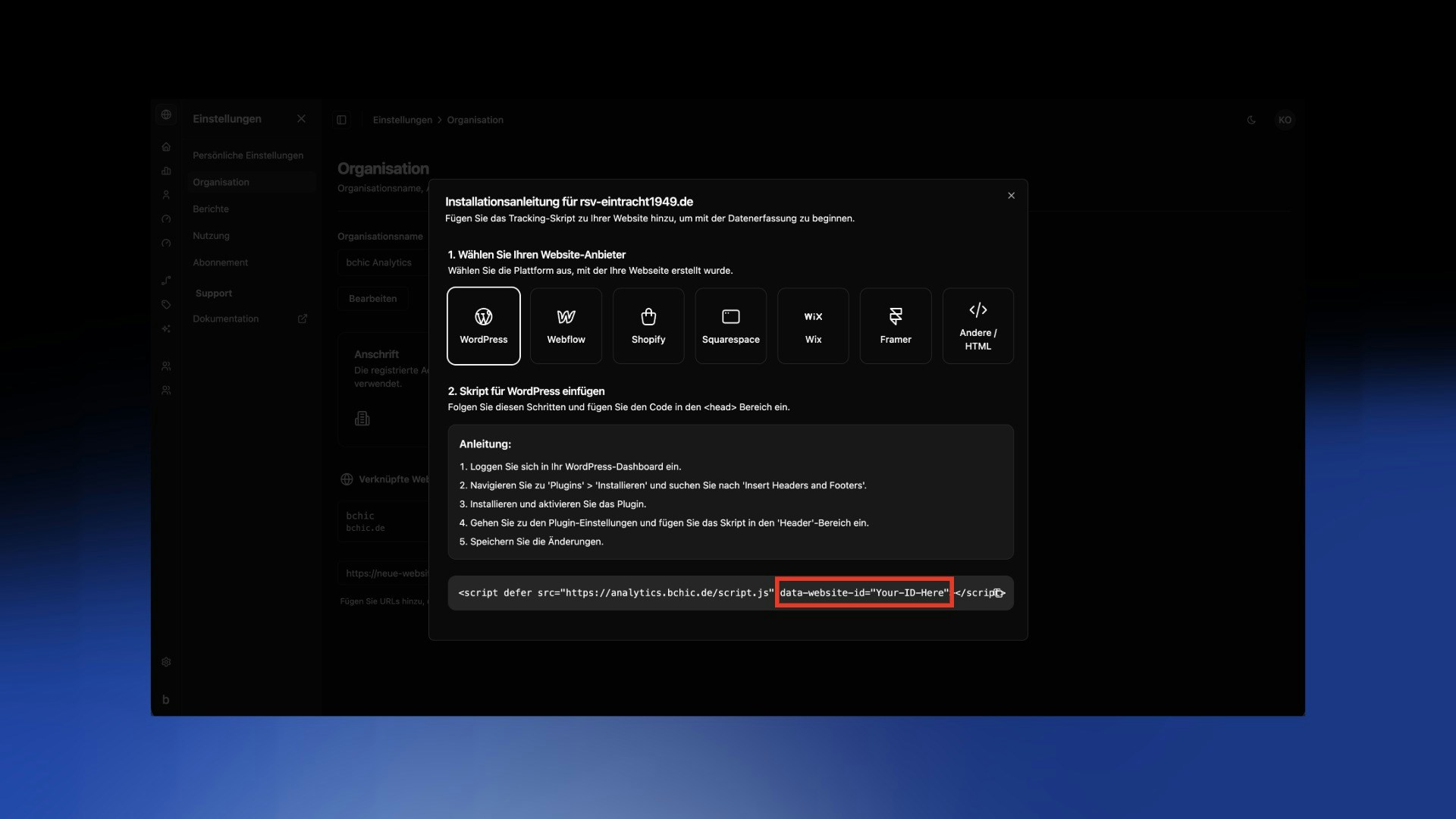
Settings Organization DashboardAdd the URL of your documentation here (e.g., docs.your-company.com) and click the plus symbol:Add URL to organizationThen, click the Installation button (the code icon) next to the newly created URL. Copy your ID from the code snippet displayed. You can find it in the data-website-id attribute.Copy Website ID
2

Create Tracking File

Now create a new file in your documentation project. We recommend saving it in the root directory (where your docs.json is located).Name the file: bchic.jsPaste the following code into this file. Important: Replace YOUR-ID-HERE with the ID you copied in the first step.
bchic.js
(function() {
// Create a new script element
var script = document.createElement('script');

// Set the source and defer attributes
script.src = 'https://analytics.bchic.de/script.js';
script.defer = true;

// Set your custom data-website-id attribute
script.setAttribute('data-website-id', 'YOUR-ID-HERE');

// Append the script to the head of the document to start loading it
document.head.appendChild(script);
})();

Verification

Once you have pushed these changes, the script will automatically load on all pages of your documentation. You can verify the installation by visiting your docs and checking the bchic dashboard to see if the first visitor (yourself) is being tracked.